

MCP Server gives AI clients a standard way to call TrueWatch observability capabilities. Instead of asking an engineer to write every DQL query by hand, open every dashboard, or switch between monitoring pages, an AI client can request structured access to tools like monitor lookup, log search, dashboard discovery, and DQL query execution.
MCP alone doesn't make an enterprise-ready operations agent. MCP solves the interface layer — can the AI client reach the right tools and data? Production readiness still depends on permissions, approval flows, audit trails, evidence retention, and clear boundaries on what an agent is allowed to do.
This guide walks through connecting TrueWatch MCP Server to an AI client, using Cherry Studio as the example client (the same steps apply to Claude Code, Cursor, and other MCP-compatible clients).
What Is MCP?
Model Context Protocol (MCP) is an open protocol for connecting AI applications to external systems. The official MCP documentation describes it as a standard way for AI applications to access data sources, tools, and workflows through a shared interface.
In practice, MCP exposes four kinds of capabilities:
- Tools — functions an AI client can call
- Resources — data or context the client can read
- Prompts — workflows that guide repeatable tasks
- Transports — the communication layer between clients and servers
For observability, this pattern matters because production questions rarely live inside a model's training data. An AI assistant needs access to current telemetry: logs, metrics, traces, alerts, dashboards, monitors, service context, and query results.
What Does TrueWatch MCP Server Provide?
An MCP server is the component that exposes a system's tools, resources, and prompts through the Model Context Protocol, so an MCP-compatible AI client can call them directly — that's what "MCP server" means in practice.
TrueWatch MCP Server exposes selected TrueWatch capabilities through an MCP-compatible interface. Any AI client that can connect to an MCP server and authenticate with an API key can use it. Depending on which tools and permissions are enabled, an AI client can use TrueWatch MCP Server to work with:
- Monitor and alert information
- Log search
- Dashboard discovery
- DQL query execution
- Observability data lookup
- Workspace-scoped data access
Scope is the important design point here. Every request is authenticated and tied to a workspace. Connecting to MCP doesn't hand an AI client unrestricted access to production data — access is bounded by the API key's permissions.
Before You Start
Prepare the following:
- An AI client that supports MCP server connections (this guide uses Cherry Studio)
- A TrueWatch API key scoped to the minimum permissions the task requires
- The correct TrueWatch endpoint or site key for your workspace
- Network access from the MCP client to the TrueWatch MCP endpoint
- An internal decision on which tools the AI client is allowed to call
Start read-only for production use. Let the client query and summarize observability data before allowing any workflow with side effects.
Connect Through Cherry Studio
The source article uses Cherry Studio as the example MCP client. The exact UI may change, but the setup flow is usually the same: install the client, create an MCP server connection, add the URL and headers, enable the server, and verify that the AI assistant can see the tools.
1. Install Cherry Studio
Download and install the MCP-compatible Cherry Studio client for your operating system.
2. Open MCP Settings
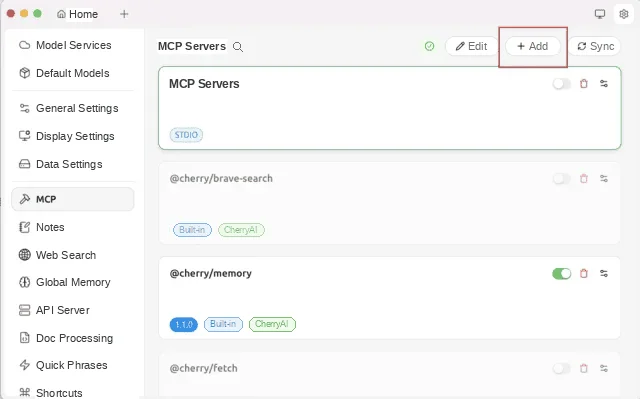
Open Cherry Studio, go to settings, choose the MCP section, and add a new MCP server.
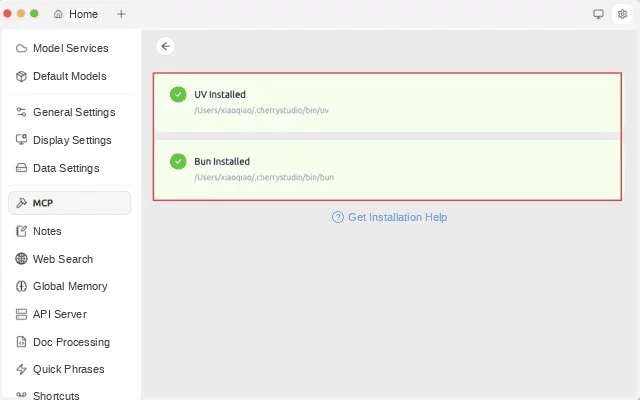
If the MCP service cannot start, check whether the required local runtime is installed. The source setup notes mention UV and Bun as possible prerequisites.
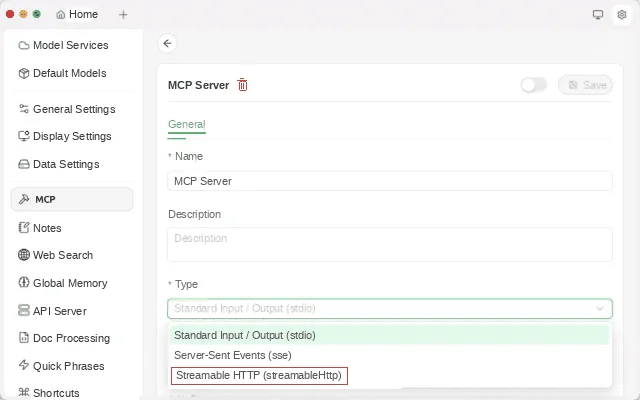
3. Create the MCP Server Entry
Give the server a clear name, such as TrueWatch MCP Server, and choose the appropriate connection type. In the source setup, the selected type is streamableHttp.
4. Configure URL and Headers
Use the TrueWatch MCP Server URL provided by your workspace or documentation.
https://docs.truewatch.com/owl/mcp-quickstart/Add request headers for authentication and endpoint selection. The exact header names should follow your current TrueWatch documentation. A typical setup uses an API key plus an endpoint or site key:
Authorization=<TRUEWATCH_API_KEY>;Endpoint=<TRUEWATCH_SITE_KEY>The source article uses an API-key-based model where each request is scoped to the workspace associated with the API key. In English production documentation, avoid pasting real API keys into screenshots, chat clients, or shared configuration files.
Example endpoint map:
const SITE_KEY_MAP = {  us1: 'https://us1-openapi.truewatch.com',
eu1: 'https://eu1-openapi.truewatch.com',
ap1: 'https://ap1-openapi.truewatch.com',};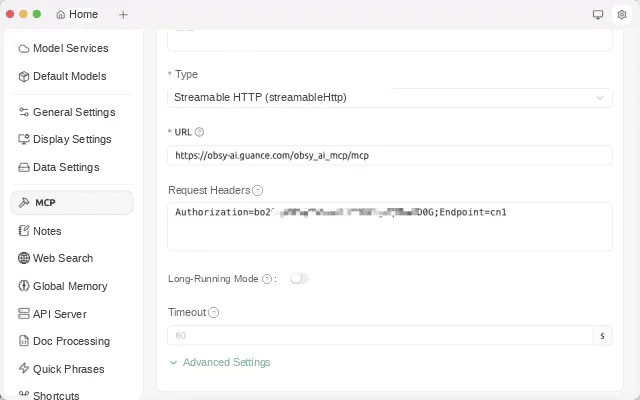
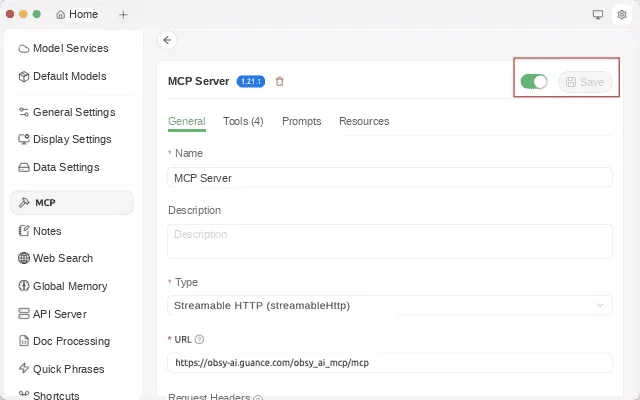
5. Enable the MCP Server
After the URL and headers are configured, enable the MCP server connection.
6. Select the MCP Server in a Chat or Assistant
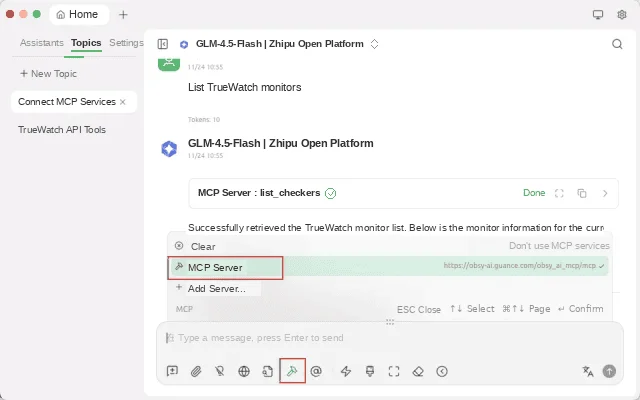
Return to the main workspace in Cherry Studio. In a topic or assistant, choose the MCP server you just created.
7. Verify the Connection
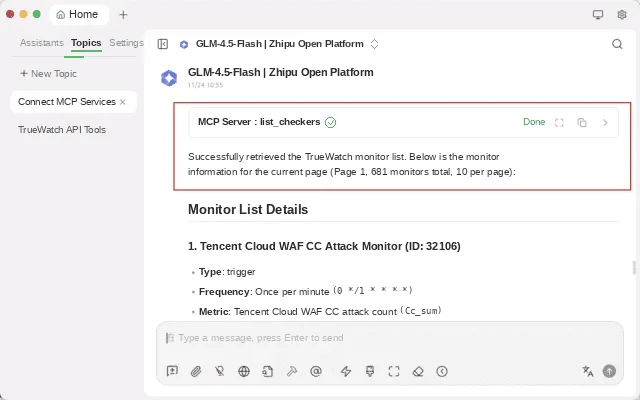
Ask the assistant a simple observability question that should require a TrueWatch tool call. Start with a low-risk read-only request, such as:
Show me the available TrueWatch MCP tools for this workspace.Then test a scoped query:
Find recent critical alerts in the current workspace and summarize the affected services.The goal of verification is not just "the client responds." Confirm that the response is based on a tool call, uses the expected workspace, and does not expose data outside the intended scope.
Security and Governance Notes
MCP makes tool access easier. That makes boundaries more important, not less. For a production observability environment:
- Use read-only API keys unless a specific workflow requires more
- Give each AI client or agent its own key instead of sharing one broad team key
- Scope access by workspace, environment, service, or team wherever possible
- Keep API keys out of prompts, screenshots, and public documentation
- Log tool calls so investigations can be reviewed later
- Require approval for any action with production side effects
- Don't let an agent call every tool simply because the tool exists
This is the same distinction that runs through TrueWatch's broader AI agent observability architecture: CLI, MCP Server, and OpenAPI provide the tool interface. Toby AI Agents adds the observability-specific troubleshooting methodology, governance, evidence trails, approval flows, and closed-loop verification on top of it.
What Does MCP Change for Observability Workflows?
For engineering and operations teams, MCP reduces the friction between natural-language investigation and real production data. A human can ask:
Which services had the most error spikes in the last hour?An MCP-connected assistant translates that into a tool call, retrieves current data from TrueWatch, and returns a summary with evidence. The engineer still judges whether the result is complete, whether more context is needed, and whether any action should follow.
Where MCP helps:
- Lets AI clients access live observability data instead of relying only on static model knowledge
- Standardizes how tools are exposed across different AI clients
- Reduces one-off integration work for teams building internal assistants
- Lets observability capabilities become part of broader engineering workflows
Where MCP isn't enough on its own:
- It doesn't define your incident methodology
- It doesn't automatically create safe production permissions
- It doesn't replace human approval for high-risk actions
- It doesn't teach an agent your service catalog, ownership model, or runbooks
Use MCP as the interface layer. Use platform governance and production context to make the agent trustworthy.
Frequently Asked Questions
Q: What is an MCP server, and what does TrueWatch MCP Server provide?
A: An MCP server exposes a system's tools, resources, and prompts through the Model Context Protocol, so any MCP-compatible AI client can call them with the right permissions. TrueWatch MCP Server applies that pattern to observability — monitors, logs, dashboards, and DQL queries — so any MCP-compatible AI client can call them with a scoped API key.
Q: Which AI clients work with TrueWatch MCP Server?
A: Any MCP-compatible client works, including Claude Code and Cursor. The connection uses the same endpoint, headers, and streamableHttp connection type regardless of client.
Q: Is MCP access read-only?
A: Access depends on the permissions attached to the API key. TrueWatch recommends starting with a read-only key and only expanding permissions once a specific workflow requires it.
Q: Does MCP replace the need for approval workflows?
A: No. MCP provides the tool interface, not the governance layer. Approval flows, audit trails, and evidence retention for production actions come from the surrounding agent architecture — in TrueWatch's case, Toby AI Agents.
Q: Can one API key be shared across multiple AI agents?
A: It can, but it's not recommended. Giving each AI client or agent its own key makes access easier to scope, log, and revoke independently.
Next Step
Connect a read-only TrueWatch API key to an MCP-compatible client, test a few low-risk observability queries, and decide which tools your engineering agents should have access to.
Explore TrueWatch MCP documentation and join the Toby AI Agents waitlist →
