
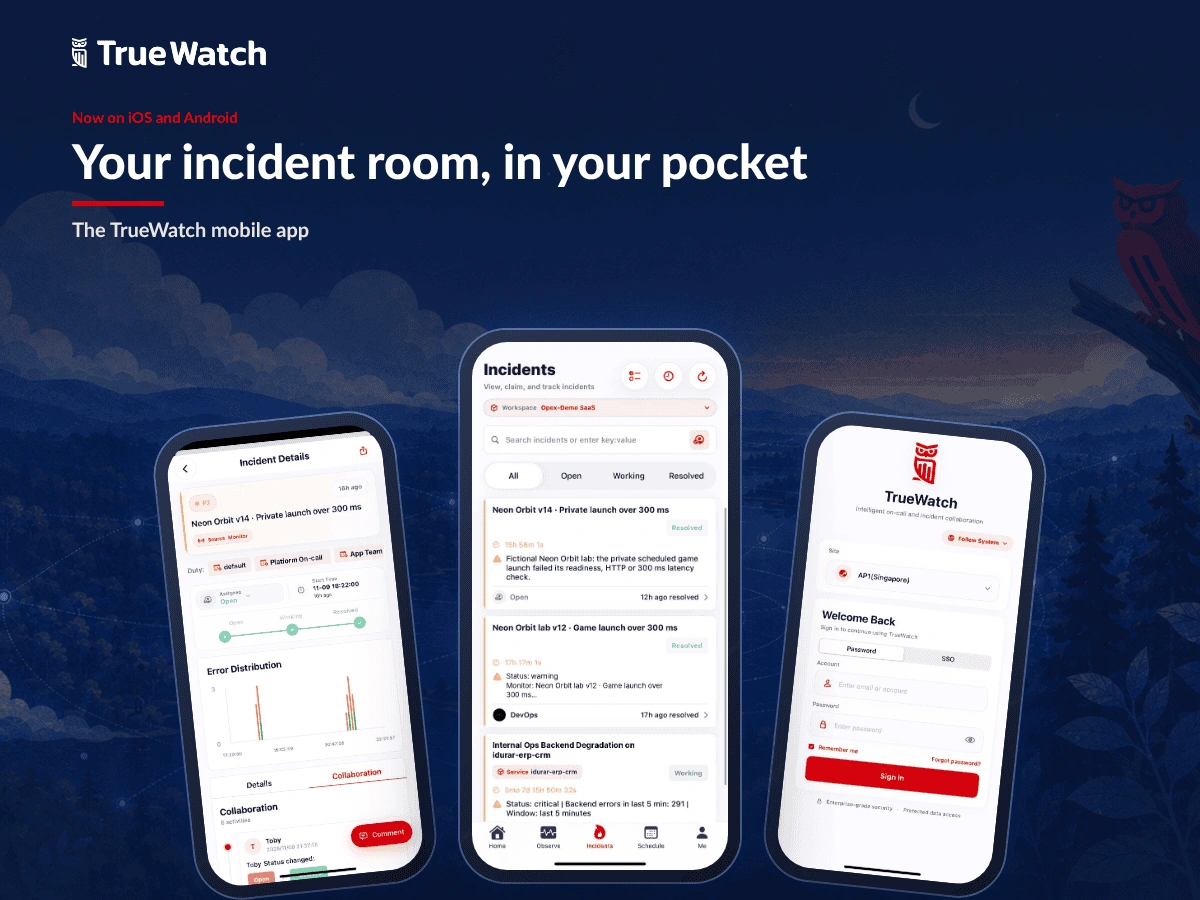
Incidents don't wait for you to get back to your desk. A latency spike hits on your commute. An error rate climbs between meetings. A release goes sideways at 2 a.m.
The TrueWatch mobile app is now live on the App Store and Google Play. It puts your incidents, observability data, dashboards and on-call schedule on your phone, so you can pick up an alert, check what's happening and move the fix forward from wherever you are.
Why we built it
A pager alert tells you something is wrong. It rarely tells you enough to decide what to do next. So you find a laptop, find a connection, sign in and dig through dashboards before you even know whether the issue is real.
The TrueWatch app shortens that first step. The alert, the context and the next action live in the same place, on the device already in your hand.
What you can do with the TrueWatch mobile app
The app is organized around five tabs: Home, Observe, Incidents, Schedule and Me.
See what needs you, the moment you open the app
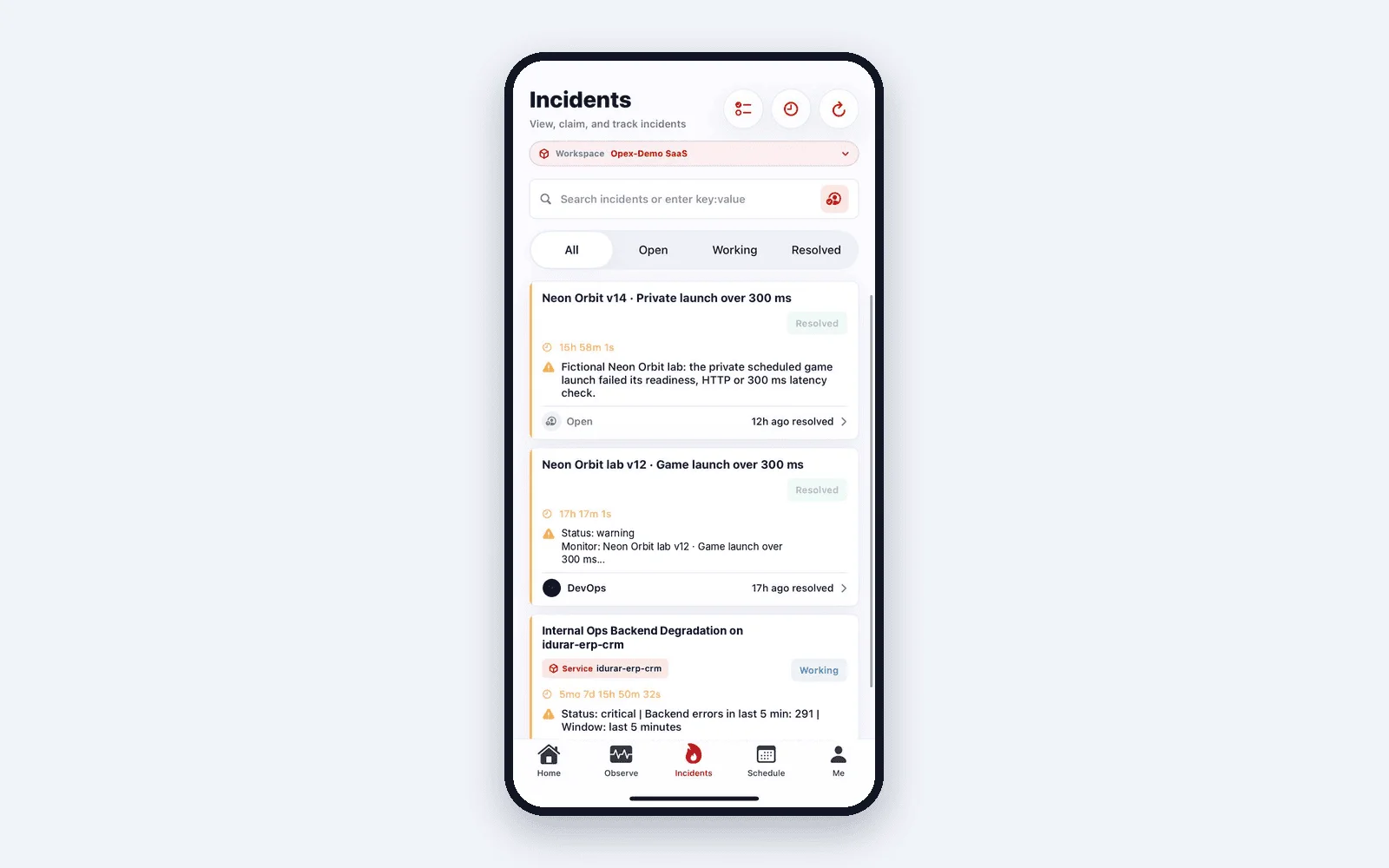
Home shows the incidents that need attention in your workspace: unassigned ones, and unresolved ones assigned to you. Each card shows severity, status (Open, Working or Resolved), assignee, how long it has been running and who's on duty. Long-press to select several incidents and take them over or mark them resolved in one go.
Work an incident from start to finish
- Search incidents by keyword or key:value conditions, with suggestions for fields like severity, status, host and assignee.
- Turn on the "Related to me" filter to see incidents you were notified about, assigned to, or covered by your on-call rules.
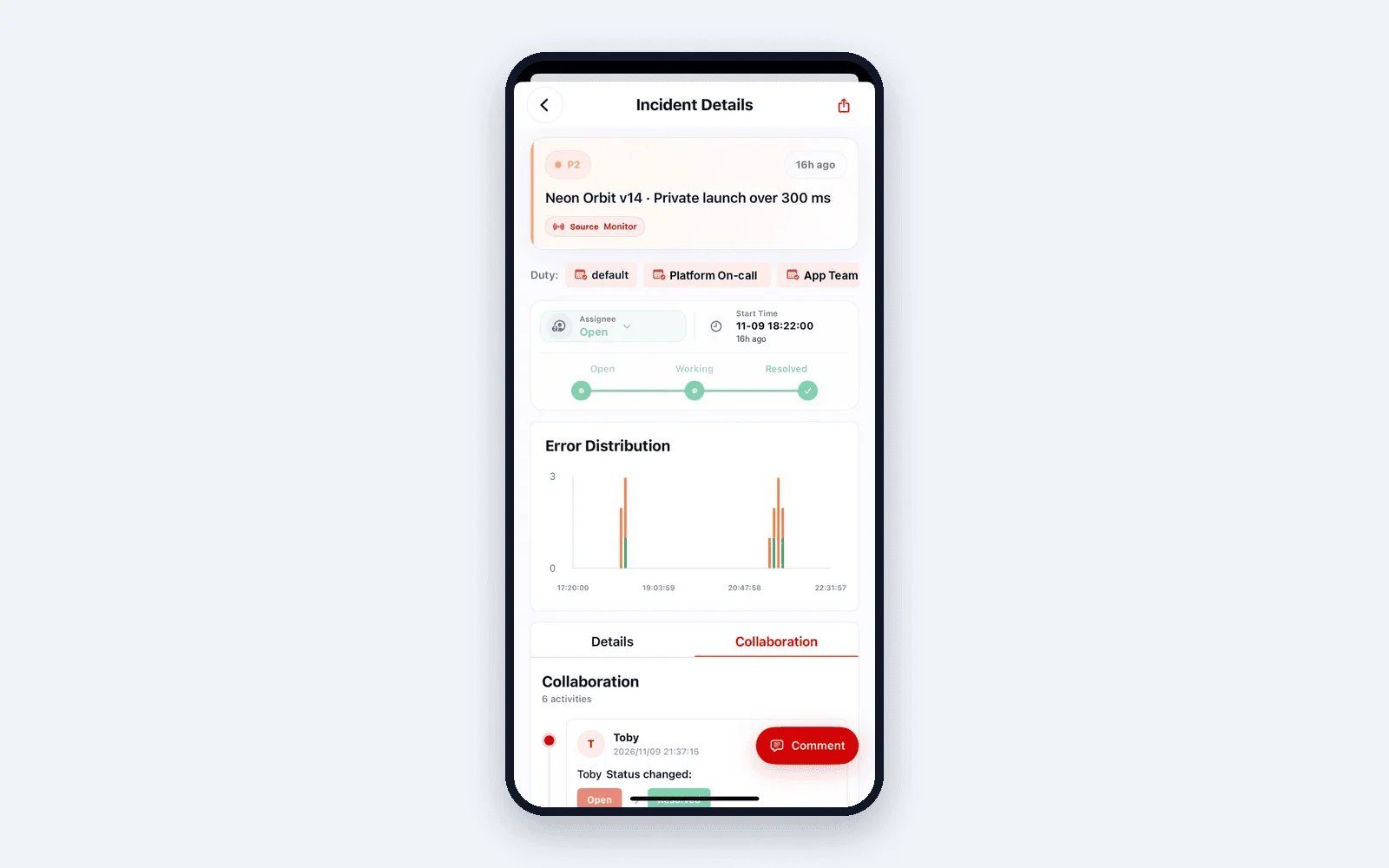
- Open an incident to see its severity, status, assignee, on-duty teams, start time and an error distribution chart.
- Take it over, mark it resolved, reopen it or hand it back.
- Comment, @mention teammates and attach files in the collaboration timeline, so the whole team sees the same story.
Get alerts that take you straight to the problem
Push notifications cover workspace alerts and incident collaboration. Tap one to land on the incident. Tap an @mention to jump to the exact comment, highlighted. In notification settings, you choose what reaches you: only incidents related to you, reminders for unassigned incidents, or status changes on incidents in progress.
Query your observability data on the go
The Observe tab brings the core TrueWatch explorers to your phone, with preset or exact time ranges and field and value suggestions.
- Logs: pick an index and query by keyword or key:value conditions, then open any record to see its fields and raw content.
- Traces: search by trace ID, service or status, view the span waterfall, and open linked RUM resources or individual spans.
- Events: find key events by event ID or monitor fields.
- RUM: browse views, actions, resources, long tasks and errors, and follow them through to the related trace.
Check your dashboards, not a screenshot of them
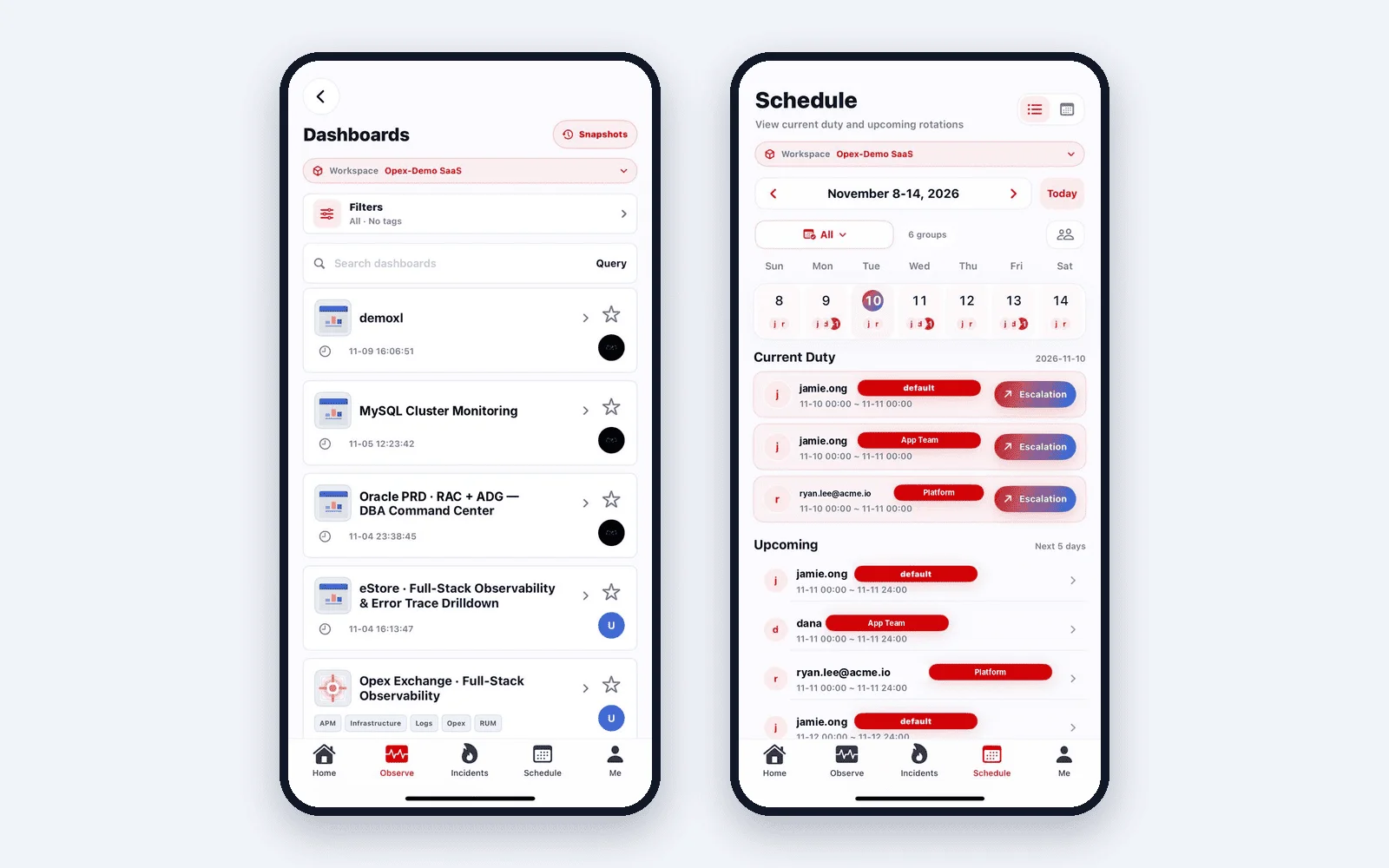
Dashboards stay in sync with the web console. Search, filter by tag, star the ones you use most and open saved snapshots. Inside a dashboard, change the time range, switch variables by service, host or application, zoom into a single chart and share it. On iOS, pin up to four dashboards per workspace as home screen shortcuts: long-press the app icon and you're there.
Know who's on call and how alerts escalate
The Schedule tab shows a weekly or monthly view of duty schedules, who is on duty today, rotations for the next five days, shift history, and each member's contact details. You can also review escalation policies, notification levels, channels and targets, so you know exactly how an alert reaches the right person.
Heading into a meeting or off for the day? Set your own status on the Me tab. Choose Available to receive alerts and join the on-call rotation, or Away to pause both. The change applies to the rotation immediately.
Move between phone and laptop without losing your place
- Share links: share a console link to any incident, dashboard, chart or record. Teammates with workspace access open it on their laptop or straight in the app.
- Deep links: if the app is installed, TrueWatch links from email or chat alerts open the matching page in the app.
- Handoff: on iOS and macOS, start on your iPhone and pick up the same incident, dashboard or trace in your Mac's browser, or the other way round.
Sign in securely, across every workspace
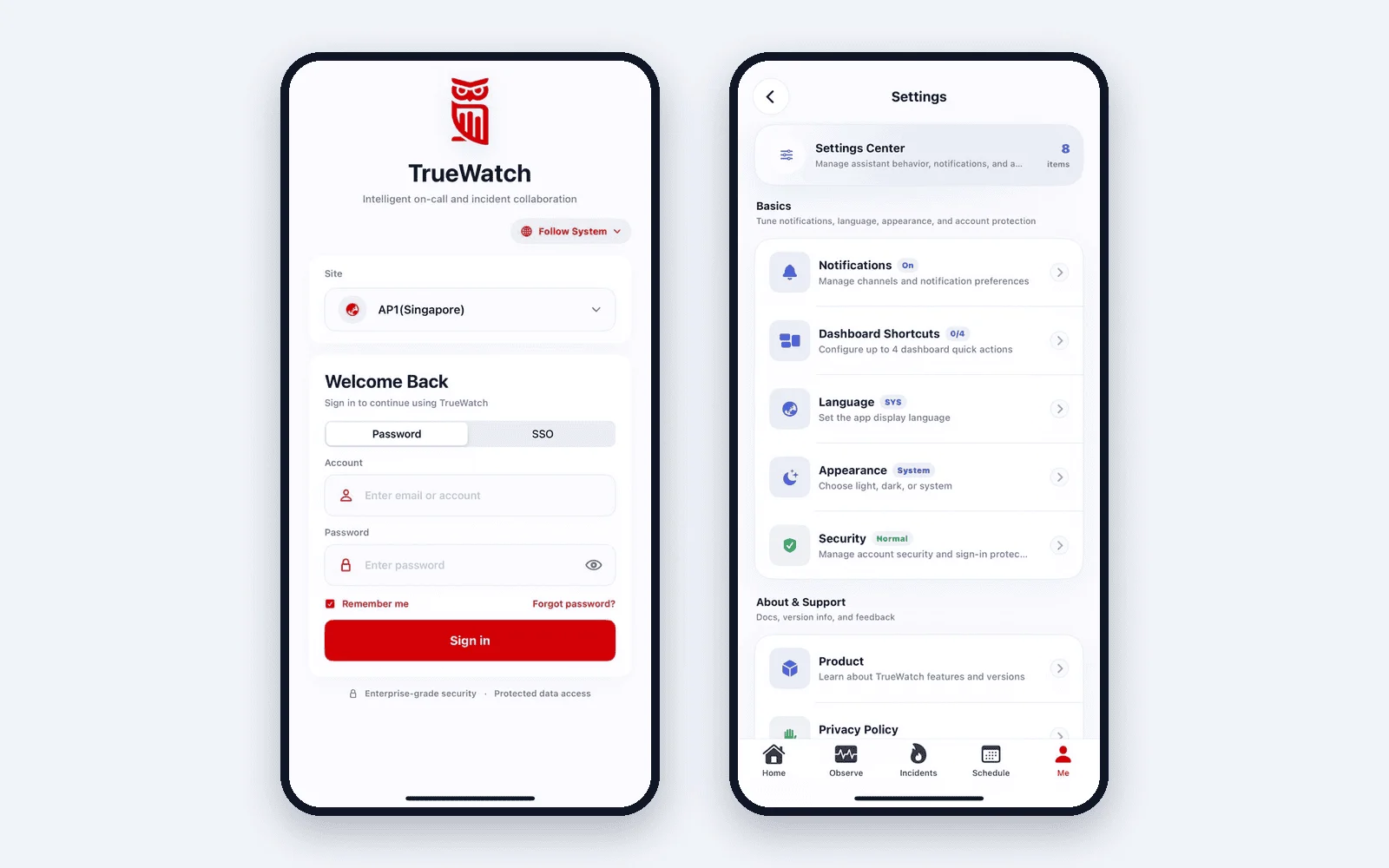
Pick your TrueWatch site, such as AP1 (Singapore), then sign in with your password or SSO, with MFA when your workspace requires it. Switch between every workspace you have access to without signing out. Choose light, dark or system appearance to suit a 2 a.m. page.
Who it's for
- SREs and on-call engineers: take over an alert, check logs and traces, and decide whether it needs a laptop.
- DevOps and platform leads: keep an eye on a release or migration without being tied to a desk.
- Engineering managers and CTOs: see incident status and service health at a glance before a standup or a customer call.
Get started in three steps
- Download the TrueWatch app from the App Store or Google Play, or scan the QR code in your workspace under Integrations > Mobile.
- Sign in with your TrueWatch account, the same one you use on the web.
- Allow notifications and set your push preferences under Me > Settings > Notifications.
New to TrueWatch? Start your free trial, then sign in to the app once your workspace is ready.
Observe beyond your desktop. Download the TrueWatch app today on the App Store and Google Play.