
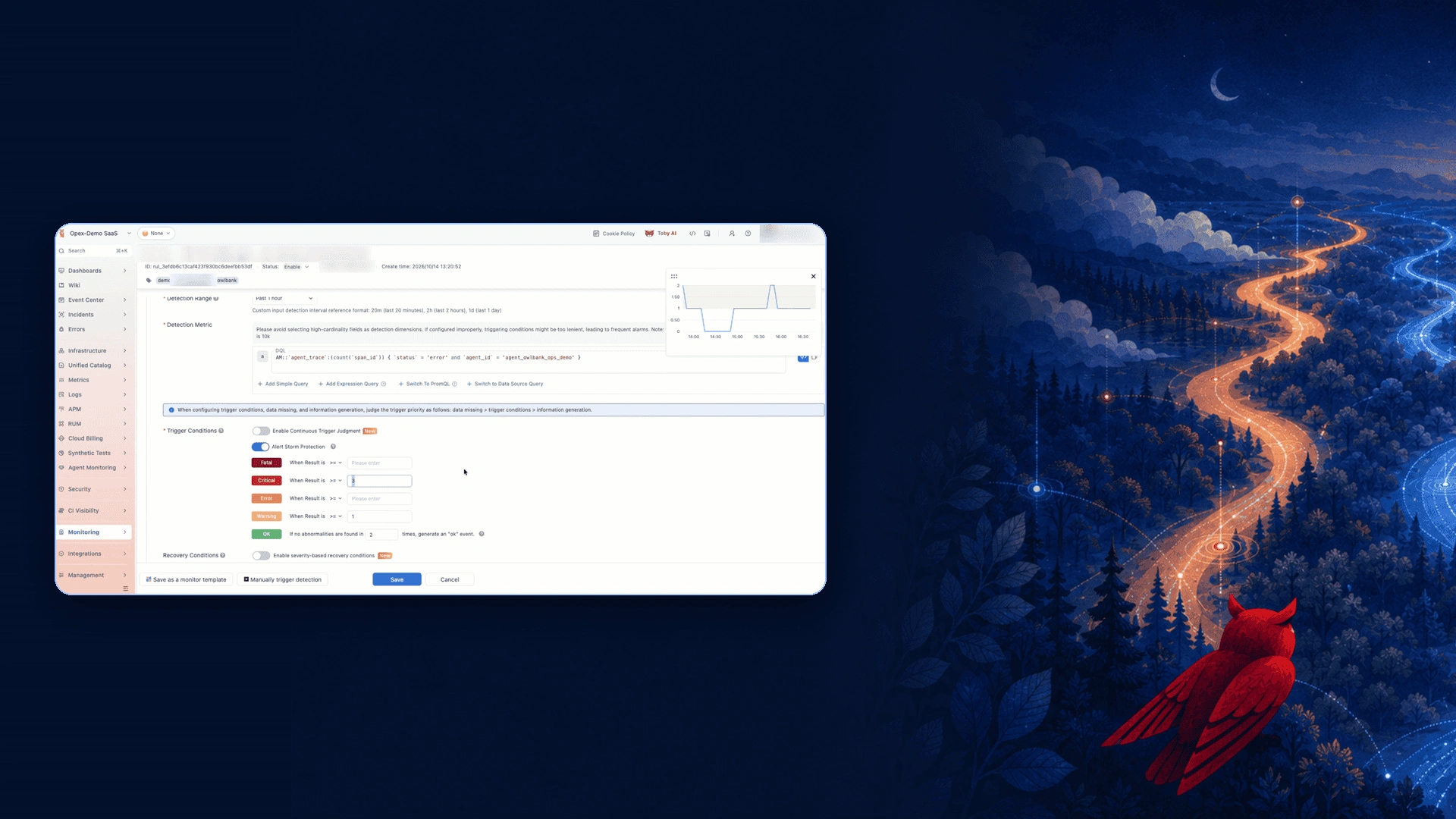
AI agent monitoring means recording every action an agent takes and alerting when those actions fail. In TrueWatch Agent Monitoring, each agent action is stored as a span in agent trace data, so you can create a threshold monitor that counts error spans, raises a warning or critical event, and routes the alert to the team that owns the agent. This guide walks through that setup, step by step.
Why AI agents need failure alerts
AI agents call models and tools on their own. A single prompt can trigger several model calls, tool calls and skill runs before the agent replies. When one of those steps fails, the agent may still return an answer, so the failure is easy to miss unless every action is recorded and checked.
TrueWatch records agent activity in three levels:
- Session: one agent run, which can include many back-and-forth exchanges with the agent.
- Trace: one exchange within that session, such as a single prompt and its reply.
- Span: one action inside a trace, such as a model call or a tool call.
Because failures happen at the span level, that is where a failure alert should look.
What you need before you start
- An agent or LLM application connected to TrueWatch Agent Monitoring, either a coding agent through the connector or an agent framework through OpenTelemetry.
- Agent trace data arriving in the workspace. Send a few test prompts after connecting and confirm the sessions appear under Agent Monitoring.
- An alert strategy, or the details of who should receive alerts, such as a Microsoft Teams channel or a group email for your NOC or observability team.
How to set up AI agent monitoring alerts in TrueWatch
Step 1. Create a monitor
Go to Monitoring > Monitors and select Create. Choose a threshold-based monitor and give it a name that tells the on-call team which agent it covers.
Step 2. Set the detection frequency and range
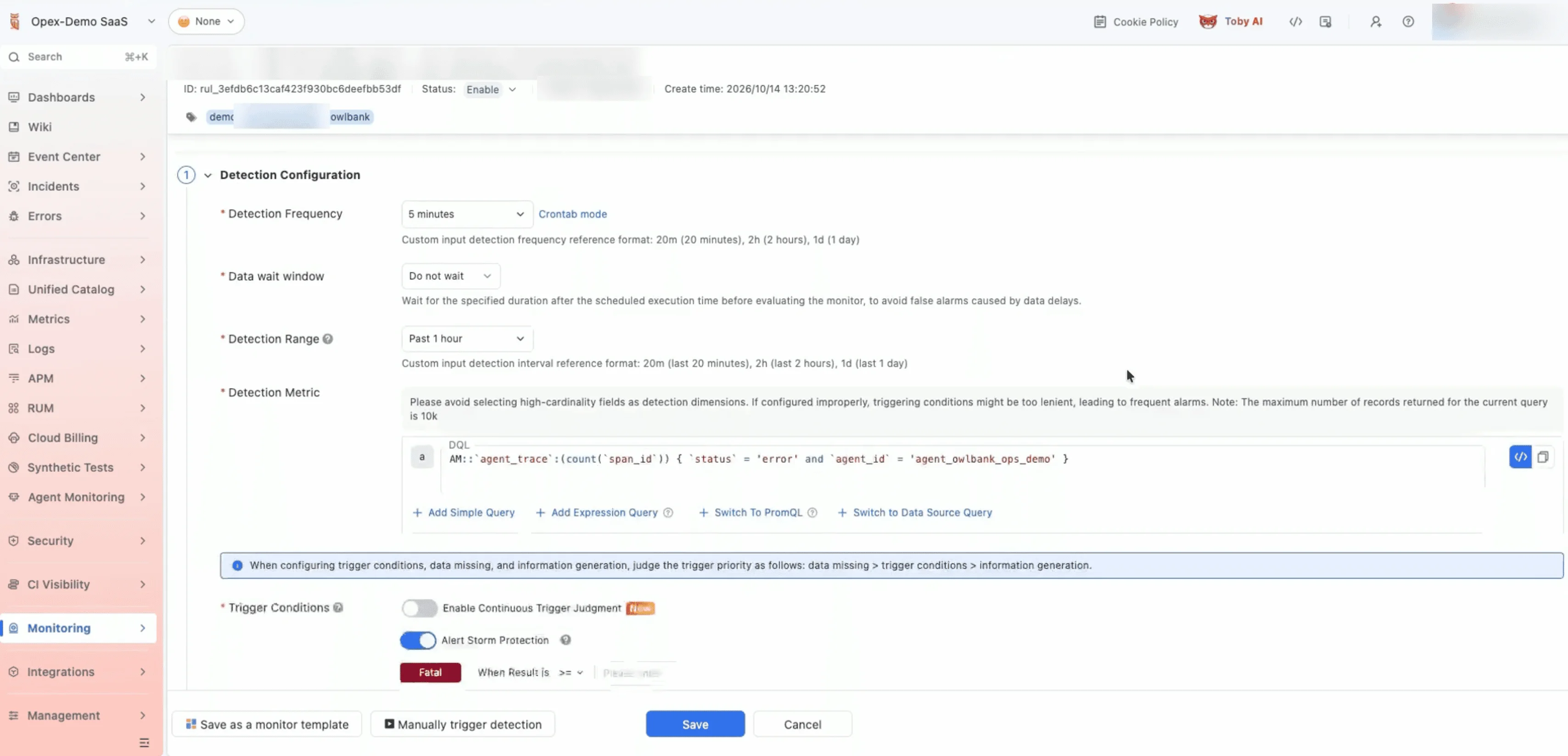
Under Detection Configuration, set how often the check runs and how far back it looks. In the demo, the monitor runs every 5 minutes and evaluates the past hour of data.
Step 3. Write the DQL query for failed agent actions
In Detection Metric, count the spans in agent trace data that have an error status, filtered to the agent you want to watch:
AM::`agent_trace`:(count(`span_id`)) { `status` = 'error' and `agent_id` = '<your_agent_id>' }This query returns the number of failed actions for that agent within the detection range. Filtering by agent_id keeps each monitor scoped to one agent, so an alert points straight at the agent that needs attention.
Step 4. Define trigger conditions
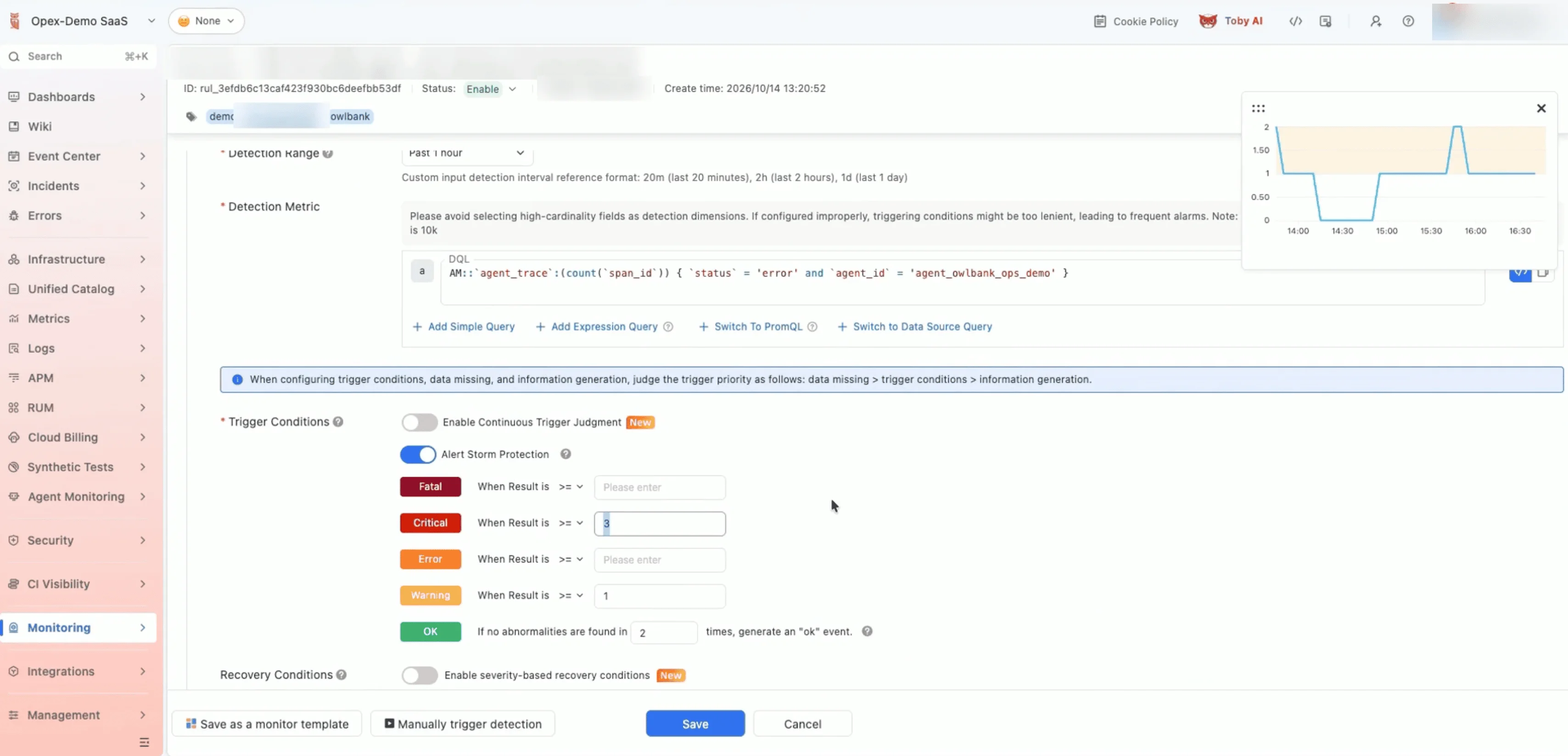
Set the thresholds that decide how serious a result is. In the demo:
| Level | Condition | Meaning |
|---|---|---|
| Warning | Result is 1 or more | At least one agent action failed |
| Critical | Result is 3 or more | Repeated failures within the detection range |
| OK | No abnormalities found in 2 consecutive checks | The agent has recovered |
Adjust these numbers to match how much failure your agent can tolerate. A customer-facing agent may need a lower critical threshold than an internal one.
Step 5. Write the event notice
Under Event Notice, add an event title and event content. This is the message responders see first, so name the agent, the failure type and where to look next, such as the agent's trace list.
Step 6. Route the alert with an alert strategy
Under Alert Configuration, choose an Alert Strategy. Alert strategies decide who receives the alert and where it goes, for example a Microsoft Teams channel, a specific group of people, or a group email for your NOC team or observability team. You can set up different strategies with different targets for different agents or severity levels.
What happens when an agent action fails
When failed actions cross a threshold, the monitor creates an event in the Event Center. In the demo, a tool call failure on the monitored agent raised a warning event.
From the event, you can:
- Open Related Events to see other events from the same fault and how often it repeated.
- Review the event details and the attributes of the failing span.
- Open the trace tree in Agent Monitoring to see which model call or tool call failed, along with its tokens, duration and status.
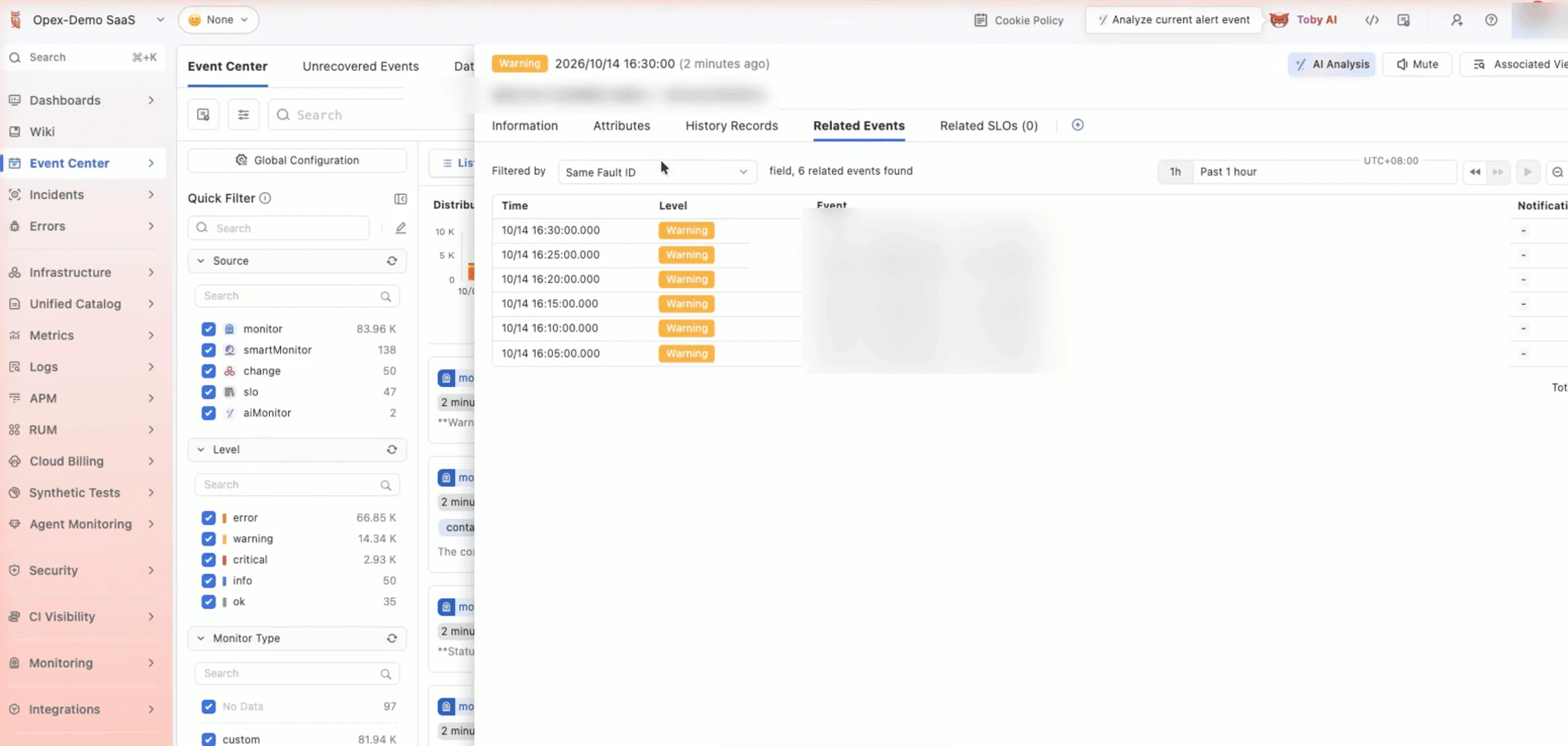
This gives responders a path from the alert to the exact action that failed, instead of starting from a vague report that the agent "stopped working".
Threshold monitor or AI Monitor?
A threshold monitor works well when you know exactly what to count, such as error spans for one agent. If you want a broader check, such as failed operations, slow operations and sharp rises in token usage together, TrueWatch also offers AI Monitor. You describe the check in plain English, it runs on a schedule, and it returns a summary with evidence, a confidence level and recommended next steps.
Many teams will use both: threshold monitors for clear failure signals, and AI Monitor for patterns that are harder to express as a single query.
FAQ
What is AI agent monitoring?
AI agent monitoring is the practice of recording what an AI agent does, including its sessions, traces, model calls and tool calls, and alerting when those actions fail, slow down or use more tokens than expected.
What data does TrueWatch record for AI agents?
TrueWatch records one session per agent run, one trace per exchange within that session, and one span per action inside a trace. For each, you can see details such as input and output tokens, duration, the model used, tool calls and status.
How do I get alerted when an AI agent fails?
Create a threshold monitor in TrueWatch that counts spans with an error status in agent trace data, set warning and critical thresholds, and link an alert strategy so the alert reaches the right team.
Which agents can TrueWatch monitor?
Coding agents can be connected through the connector, and agent frameworks can be connected through OpenTelemetry. The demo shows coding agents and Toby AI Agents connected to the same Agent Monitoring overview.
Start monitoring your AI agents
Agent failures are easier to fix when you hear about them first and can trace them to a single action. Learn more about TrueWatch AI Agent Observability, or request a demo to see agent failure alerts on your own agents.
